02 · ROSTERLeave planning Leave requests, decided with staffing in view.
Staff apply in My Roster, in the app or the browser, and follow the status. Planners see what each request does to staffing, day by day, before they decide.
Apply
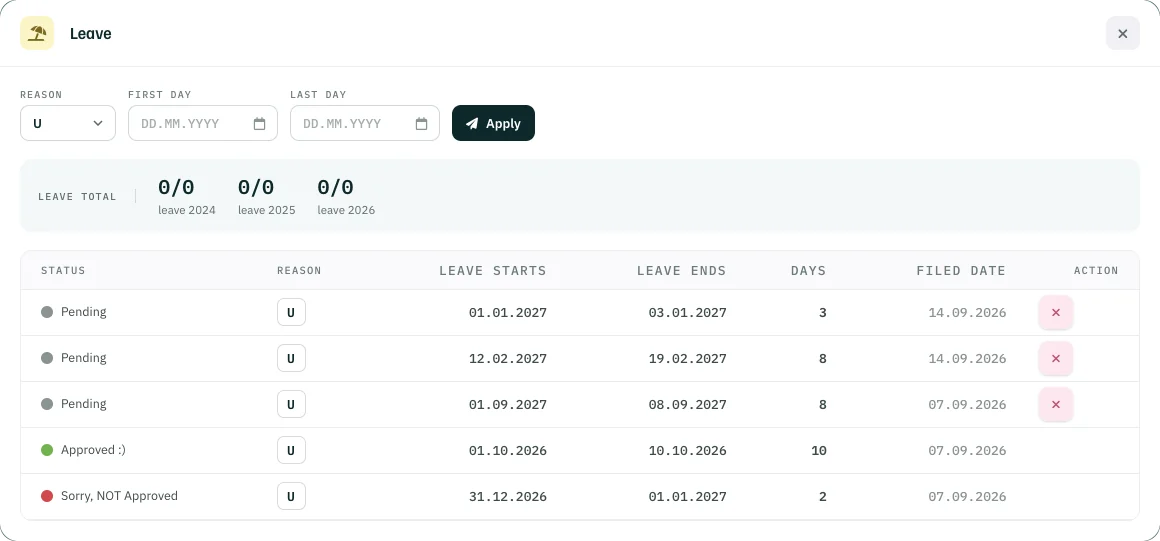
Three fields and a button.
Reason, first day, last day, Apply. Your unit decides which reasons exist – leave, special leave, a business trip – and every application shows its status: pending, approved or not approved.
Check
Against the medium-term resource plan.
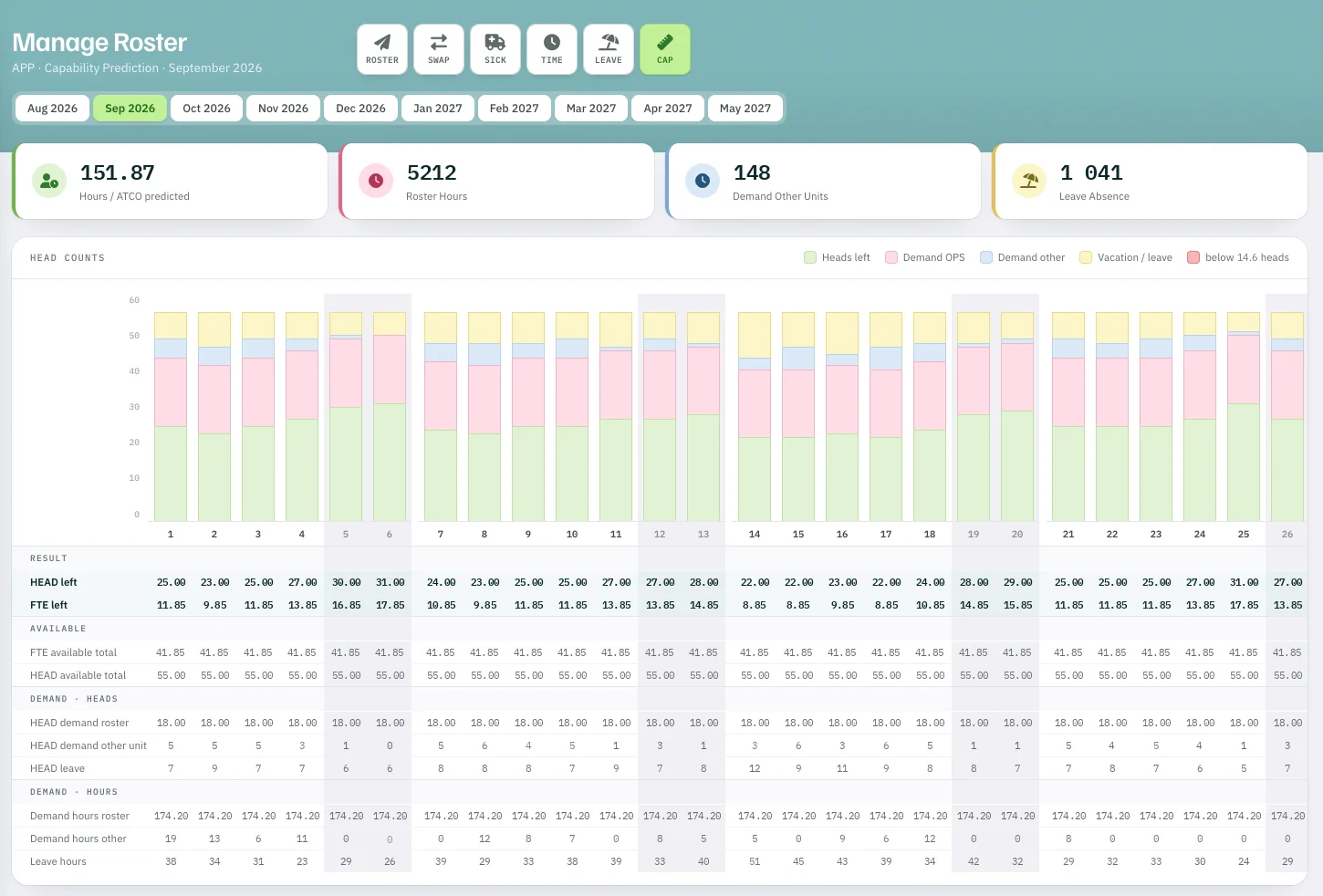
Capability Prediction shows heads left, OPS demand, other demand and leave for every day. Open requests already count as absence, so you see whether one more would leave you short.
Decide
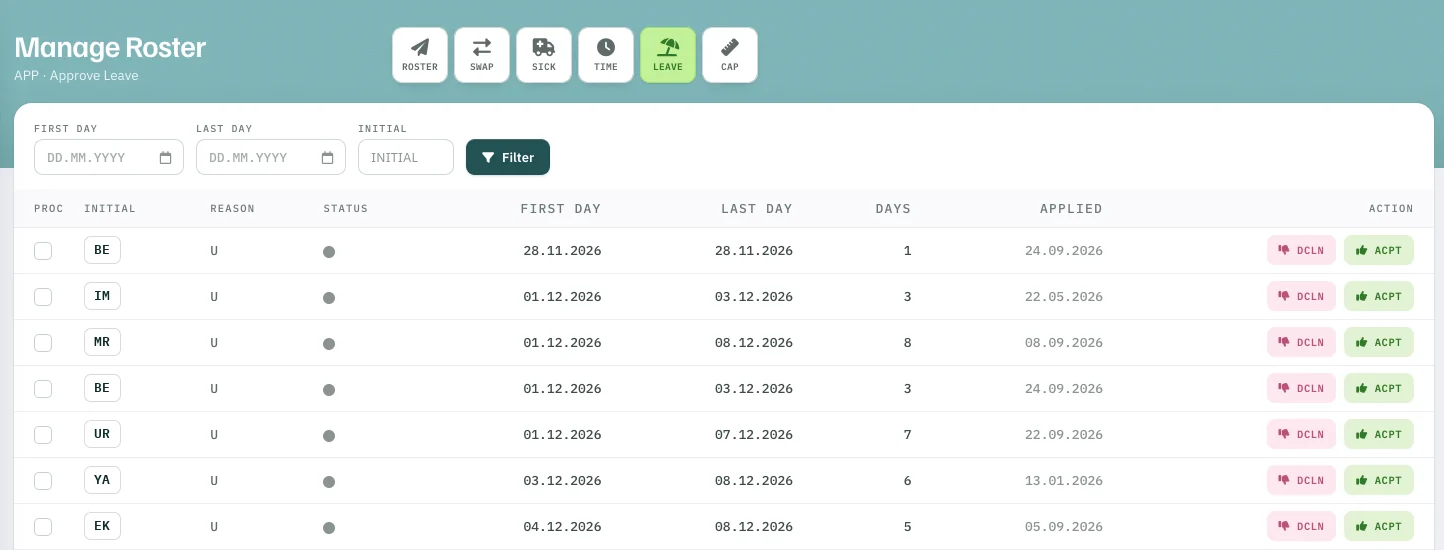
Approve, decline or keep pending.
One click per request. The applicant gets the decision as a notification, in the app or in the browser.
- Approve
- Decline
- Keep pending
Then